Common Technical SEO Issues Hiding in Plain Sight (Based on 39 Audits)
Technical search engine optimization (SEO) deals with site health issues like mobile friendliness, proper page indexing, site structure, page speed and more. Poor technical website health can mean low (or no) visibility, stagnant traffic, and a negative user experience, leaving traffic (and sales) on the table.
I find that a lot of clients and even other marketing professionals focus primarily on on-page SEO, and ignore technical issues or consider them unimportant. The truth is even if you can’t always see technical issues, they can slow down your site, frustrate users, and make it harder for search engines and AI engines to understand what your content is about, which can really limit your reach.
Every time I work with a new client, the very first thing I do is a website audit. I absolutely love running audits - it’s so important to understand how healthy your website is (or isn’t), fix any issues that could be lurking beneath the surface, and make sure simple issues are taken care of before they multiply over time.
After running 39 audits and resolving over 400 issues in the past 16 months since starting Stargazer SEO, here is a quick overview of the most common technical issues and how prevalent they are (shown as % of total issues by category):
Note: These percentages reflect how often each category of issue appeared across all audits, not necessarily the total number of individual page or section-level errors. In many cases, a single issue category can point to dozens, hundreds, or even thousands of instances of the same exact issue.
Keep reading for a summary of each issue, how they happen, why they matter, and how to fix them.
Metadata: missing, duplicate, too long
Metadata includes SEO title tags, meta descriptions, headings and URLs. These elements describe the content on your page to search engines and users. Thinking about how metadata shows up in search results, it should be written with the intent of increasing your click-through rate. Metadata that is incorrect or missing is one of the most common issues I’ve seen when running an audit and presents an opportunity to more fully optimize your website.
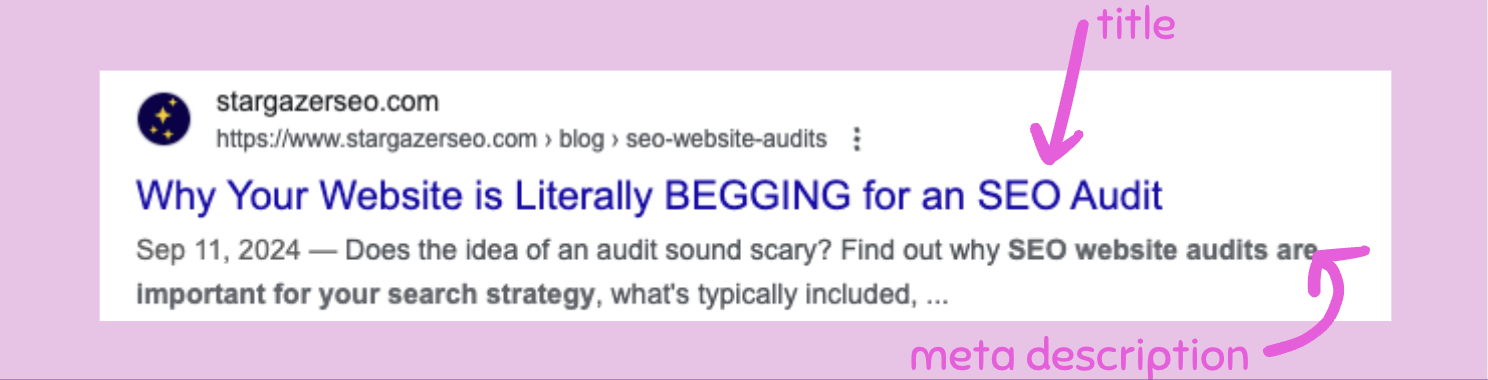
^ example of an SEO title and meta description in search results
How this happens: New pages get added on the fly and you don’t always think to fully optimize them. Maybe you cloned a page, so now you have two pages with completely different content but the same (duplicate) metadata.
Why it matters: Describing your pages helps users and search engines understand what your page is about. Also I have seen websites that inherit their design theme’s boilerplate metadata, which is not only a missed opportunity for SEO but could mean an incorrect representation of who you are and what your business does.
How to fix it: Write unique, descriptive metadata for all pages. My recommendations for length are 60 characters max for titles and 160 characters max for descriptions, before they get cut off by search engines. Each page should have a single, descriptive H1 heading tag that contains your keyword.
XML Sitemap issues
Your sitemap.xml is a file that lists your important pages, providing easier navigation and visibility to search engines. You should keep your sitemap updated as you add or remove pages, or edit URLs that you want to be crawled and indexed. Most common errors I see are that the sitemap.xml is not found, or it includes incorrect pages.
How this happens: Usually either a sitemap was never created and returns a 404 error, or there are incorrect (broken or 404 URLs) or “orphaned” pages (pages not linked in your navigation or from any other place on your website).
Why it matters: A sitemap.xml file makes it easier for crawlers to discover the pages on your website.
How to fix it: You can see your sitemap by going to yourdomain.com/sitemap.xml. Check that all pages that should be indexed are on your sitemap, and you don’t have any outdated, test, or otherwise irrelevant pages here. If you don’t have an XML sitemap, it should be created ASAP! You can submit and manage your sitemap in Google Search Console.

Redirects on redirects on redirects
A URL redirect is when traffic is automatically forwarded, or redirected, from one URL to another. Redirects should only be used when necessary, and should be placed when a live URL receiving traffic is changed. Often I see issues happen when redirects are never placed, leading to 404 errors, or too many redirects are placed, causing a loop.
How this happens: You remove outdated pages or update URLs, but the old (and now broken) links stick around.
Why it matters: Without adding in correct redirects, it can create too many 404 errors that end in a bad user experience, lost authority, and search engines thinking your site has poor structure.
How to fix it: Regularly review redirects, especially after massive site changes. Look at your existing list before placing new redirects to avoid a loop. Review URLs before publishing pages, as sometimes your CMS will generate one you don’t like. Create redirects only as necessary.
Robots.txt issues
Why are we talking about robots? Your robots.txt is a file that helps search engines decide on which content should be crawled, and the URL path of your sitemap should be included. Typical issues include robots.txt not found, or it’s missing a link to your sitemap, or disallow rules have unintended consequences.
How this happens: Maybe you didn’t know a robots.txt file needed to be created, or you didn’t include your sitemap file. Sometimes a disallow rule is set early on that unintentionally blocks pages with the same folder or URL path from being crawled.
Why it matters: A robots.txt file has an important impact on your website's overall SEO performance. Utilizing a robots.txt file can cut the time search engine robots spend crawling and indexing your website, and it can block important content if set up incorrectly.
How to fix it: You can check to make sure yours is coming up and looks correct by going to yourdomainname.com/robots.txt. Managing this file varies by platform.
Page indexing issues
Indexed pages are all pages that search engines have crawled and can appear in search results. Google Search Console is where you can manage indexed pages and see why pages expected to be indexed are not. The biggest issues are most important pages aren’t visible in search engines. On the flip side, I also often see pages indexed that should not be found, like test pages, CMS-generated pages, or old, outdated pages you forgot even existed.
How this happens: Pages that should be indexed have a noindex tag by accident, they are not in your sitemap, the content is seen as weak by search engines, or there is a duplicate version of the page that is being prioritized by search engines.
Why it matters: Your most important pages need to be indexed, otherwise they will not be listed in search results, and users will not find them unless directed from some other source. Also, you don’t want low-quality pages to be stumbled on by site visitors.
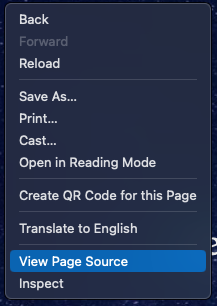
How to fix it: First, make sure you don’t have a noindex code on the pages you want to be indexed. You can check by right clicking on the page, select View Source Code and search for noindex. If you can edit code directly on your pages this would typically be in the footer HTML. Many platforms instead have a setting you select for each page, Squarespace for example has a toggle switch at the page level that says Show in search engines. You’ve already set up your Google Search Console account and submitted your XML sitemap as mentioned above right? Right? Once that is done go over to your indexing report and see which pages are indexed, and which are not. Pages that are not indexed will have a reason listed. You can add any URL to the top search bar within your account and request indexing.
Note: Most sites have a handful of pages that you DO NOT want to be indexed - these could be thank you/confirmation pages, ads landing pages, or any special page that should only be found by a specific source or taking a specific action, that you don’t want the average person to find. These pages should NOT be in your sitemap, and they SHOULD have a noindex tag.
JS and CSS issues
Javascript (JS) and Cascading Style Sheets (CSS) are essential code files in your site’s design system that control design elements and functionality. Most common JS and CSS issues I see are unminified files, file sizes that are too large, and uncached files.

How this happens: Over time more complexity and design changes are added to your site, and unnecessary JS/CSS is never cleaned up.
Why it matters: Heavy or broken JS and CSS files impact load speed, user experience and search engine rankings.
How to fix it: Minify and compress your files as necessary, remove unnecessary files, and verify the impact of these files using PageSpeed Insights.
Note: These are typically developer-level issues, so don’t be alarmed if you don’t understand what it means to minify a file.
URL/Navigation structure issues
URL structure refers to how individual URLs are written as well as how all page URLs across the site relate to each other. A website should have consistent naming conventions, page paths and folders. Similarly, navigation structure refers to the way website pages are presented and linked in the main navigation, footer, and any sidebars. URLs and navigation usually start off clean, but become messy when new pages get added without taking a step back to consider how edits impact the website as a whole.
How this happens: Most website platforms automatically generate a URL as you are building a page. It’s important to double check before you publish to make sure the URL is relevant to your page. When you duplicate pages, the new URL typically will also be duplicated with a -1 at the end.
Why it matters: Clean and consistent URL and navigation structures help search engines and site visitors to understand the hierarchy of your website’s content.
How to fix it: URLs should be brief (50-60 characters) and include your most relevant keyword. Use hyphens (-) between words, not underscores (_) or they won’t be read correctly by search engines. Make sure your related URLs have a consistent page path, like using /products/ on all product page URLs, /services/ on all service page URLs, etc. Create a user-friendly navigation with clear labels that guide visitors through your content.
Broken or missing internal and external links
Broken links refer to any link that doesn’t work and leads users to a 404 page. Missing links are a bit more ambiguous, what I mean here is that there is no link where one is expected - think navigation items, CTA buttons, mentions of services, brands, or any place deeper info or a source should be linked to.
How this happens: They could be the result of an incorrect or outdated URL, or links aren’t added where they should be. Pages get removed and URLs get changed, breaking internal links. External links move or are removed, and links get left out when a page is published or edited.
Why it matters: Broken links negatively affect user experience and may worsen your rankings because crawlers may think that your website is poorly maintained or coded.
How to fix it: To find broken links, run your domain through a free SEMRush audit or Screaming Frog crawl. Remove or replace any broken internal or external links that are found. Missing links are a little trickier as you can’t exactly scan for them, but you should periodically go through your website to make sure any buttons, mentions of internal pages, and obvious places that should have an external link, actually have a link to the relevant page to improve user experience.

Missing alt text
Alt text is the copy placed on an <img> tag that describes the content of an image. This helps not only search engines, but also screen readers to interpret images online. Often adding alt text either gets skipped, or it becomes the random string of characters that make up the file name.
How this happens: Images quickly get added to the website, sometimes with filenames like img_2 and alt text is overlooked.
Why it matters: Alt text is just as important for accessibility as it is for SEO. Missing alt text is an accessibility gap and a missed opportunity for SEO. Yes, you can rank and get traffic based on optimized images.
How to fix it: Add contextual image descriptions to all non-decorative images (like backgrounds and headers). I love ContentForest’s image alt checker tool, it’s free and tells you what your alt text is and if it’s missing.
Generic or missing anchor text
Anchor text is the visible, clickable text on a link. Its purpose is to let visitors know what to expect on the page they are clicking to. Common issues are generic (like excessive “learn more” or “read more” anchors), or “naked” anchors (full URLs as the link with no text).
How this happens: The default in certain places like blogs or buttons on certain platforms is read more or learn more. Full URLs are often overlooked in places like privacy pages, or when moving copy from a document to a website page.
Why it matters: Missing anchors provide little value as they make it difficult for search engines, screen readers, and site visitors to understand the content of the page being linked to. This makes it harder for search engines to understand the relationship between your pages, and weakens your internal linking strength.
How to fix it: Use anchor text instead of linking to full URLs, and use descriptive text. Instead of “learn more” or “read more” try “explore our services” or “see the full story”. Aim for anchor text to briefly describe the page you are linking to.
Domain doesn’t support HSTS

HTTP Strict Transport Security (HSTS) is a setting at the host level that tells browsers to access the site only through HTTPS (secure) connections, never over HTTP (unsecure). If your domain doesn’t support HSTS, it can lead to users landing on unsecure pages.
How this happens: Many hosts automatically enable HSTS. And most sites use HTTPS but don’t implement HSTS because it’s not always a default hosting configuration. In those cases, HSTS needs to be intentionally enabled at the server level.
Why it matters: You want to make sure you are only serving secured content to site visitors, and without HSTS they could land on HTTP versions of your pages, causing mixed content issues.
How to fix it: You likely already have HTTPS enabled, if not that needs to be done first. If your domain doesn’t support HSTS, you’ll most likely need to contact your host to enable it. Most audit tools should show you if there is an issue here. You can also check your source code by right-clicking on any website page, select View Source, and search for HSTS. My website is on Squarespace and this is what the code snippet looks like: "isHstsEnabled":true.
Invalid or missing structured data markup
Structured data is a standardized way to help search engines (and likely AI engines) to understand the content and data on your page. Structured data has specific formatting, and isn’t effective when added incorrectly.
How this happens: Manually-coded schema is incorrect or becomes outdated, plugins break, or settings in the backend of your website are filled out incorrectly or go unnoticed.
Why it matters: Maintaining clean structured data is important in helping search engines as well as AI engines in understanding your content - and supports rich results like FAQs, reviews, and more.
How to fix it: Google’s Rich Results Test will tell you if your structured data is invalid. Implement structured data for organization info, articles, products/services, and FAQs.
Duplicate content
In the context of SEO, this refers to a significant amount of content that is replicated across a single site or across multiple sites. All sites will have some level of duplicate content, but anything higher than about 18-20% can point to site structure issues.
How this happens: Blog templates may create multiple instances of the same exact content if not designed carefully, pages get cloned without proper redirects, indexing, and canonical tags, and duplicates never get cleaned up.
Why it matters: Having multiple versions of the same page confuses search engines and they don’t know which version to prioritize, which impacts your rankings, and dilutes your content and keywords.
How to fix it:Siteliner is a great free tool you can use to check your percentage of duplicate content. Just pop your domain in, click on Duplicate Content in the left menu once the scan is done, and you will get your % plus a list of your pages that you can click through and see highlighted copy that matches other pages:

rel=canonical links incorrect
The rel=canonical tag tells search engines which page is the “original” version of the page and is the most important. Having the wrong info in tags or setting them on the wrong pages leads to indexing problems.
How this happens: Typically issues are caused by plugins or themes, but sometimes it’s a result of manually-added tags being skipped or set up on the wrong pages.
Why it matters: Setting up incorrect canonical tags can mean search engines ignore the pages you want prioritized and indexed, which can have a big impact on rankings and search visibility.
How to fix it: Again, any audit tool should point to issues with canonical links you have set up. Your core pages should have a self-canonical tag (meaning each page points to itself), and all tags should point to the most relevant, up to date version of that page.
Resources formatted as links
Links are formatted with an <a> tag that includes an href attribute, and this format should only be used for page URLs. Search engines crawl your site from page to page by following HTML page links. Incorrect formatting means a resource, usually an image, gets incorrectly formatted with an <a> tag, and can cause crawling delays and problems.
How this happens: This usually happens in a CMS when adding images or other files, sometimes an <a> tag gets added, or designers and developers add this tag to clickable elements unintentionally.
Why it matters: When following a page link that contains a resource, for example, an image, the returned page will not contain anything except an image. This may confuse search engines and will indicate that your site has poor architecture.
How to fix it: In any site audit tool, these should be flagged. Make sure you’re only using <a> tags on links. Images and other files should live in your CMS resource library and can be added to your pages and posts from there.
Slow load speed
Websites and pages with a slow load speed can impact your rankings as well as user experience, and likely impacts conversion rates.
How this happens: Images that are way too large or uncompressed, excessive or redundant code, too many plugins, too many scripts in use, etc.
Why it matters: Page load speed is a major ranking factor, and slow speeds create a negative user experience which also increases bounce rate and decreases your conversion rate.
How to fix it: Compress images, use lazy-loading for images and other media, remove unnecessary code and plugins, and switch to a faster hosting provider if necessary. Use Google’s PageSpeed Insights tool to inspect your site on desktop and mobile. Speed issues will be highlighted and prioritized with further details of the files, code and other elements that are slowing down your site:

Bonus: Poor mobile responsiveness
Responsiveness is a web design approach that allows the content across your pages to render as expected across devices with different screen sizes, from desktop to tablet to mobile. While this isn’t represented on my chart above as I normally work with amazing designers that make all pages responsive by default, it is such a crucial aspect of site health that it needs to be included in any conversation about technical SEO health.

How this happens: Designs that look good on desktop don’t always work on mobile. Any modern CMS with a current theme should be responsive, but that’s not always the case and may not be true if your website or theme is a bit older. Even if your site is fully responsive today, any sort of updates or tweaks can make changes you didn’t expect on mobile.
Why it matters: You may have heard the term mobile-first indexing, which is Google’s shift to ranking a site based on its mobile version. So your site better render and function on mobile as well as it does on desktop, or your rankings and user experience will suffer.
How to fix it: Most platforms have a built-in mobile visualizer in the editor. ALWAYS check it to make sure your current site, as well as any future updates, perform as expected on mobile. And you should always test this on your actual mobile devices rather than relying on simulators.
Free Technical SEO Tools and Resources
If you’re looking for free tools to run an audit and start taking care of technical SEO yourself, here is a quick recap of the resources mentioned above:
SEMRush - Run a site audit with a free account for up to 100 pages. Get insight into site health with a prioritized report grouped by issue, and a list of affected pages per issue.
Screaming Frog - This is a crawler that gives you details on up to 500 pages for free accounts. Install on your desktop and get status codes, metadata and redirect info by URL.
Google Search Console - I talk about Search Console a lot, and in my opinion it’s essential for all website owners. Setup is super easy, this is where you submit your sitemap.xml, review indexed (and non-indexed) pages, and get some performance stats like impressions, click-through rate and average position for your queries and pages.
Bing Webmaster Tools - Bing’s version of Search Console. See how your site is crawled and indexed in Bing. This is especially important if you care about rankings in AI engines.
ContentForest - While primarily a content operations platform, ContentForest’s image alt text checker is a great free resource that shows your images on any page, and you can see what your alt text is and if it’s missing.
Siteliner - To date this is the best free tool I’ve found to check your site against internal duplicate content. You will see your %, a list of your pages, and highlights showing which sections of your pages are duplicate.
PageSpeed Insights - Another Google resource here, like the name implies use this to check your website page speed performance on mobile and desktop, plus insights on accessibility, best practices, and SEO.
Prioritize technical SEO health issues
It’s nearly impossible to constantly keep all technical issues at bay on your living, breathing website, but please don’t let that discourage you from starting. Some issues may be beyond your technical control (limited by platform) or expertise (developer knowledge required), but having an understanding of what you can fix now, and what needs to be prioritized for later sheds light on how to improve your site’s technical health.
Digging into technical issues can be boring, but even if they seem minor, when left unaddressed small problems can multiply over time. Fixes like implementing unique metadata on all pages, and related errors with your sitemap, robots.txt, redirects, and page indexing all account for over 60% of what I fix. Issues like that can usually be fixed fairly easily (I’ll admit sometimes tediously), even if you have little technical expertise, and they make a big impact to improve your SEO as well as user experience and accessibility.
TL;DR - you don’t need to fix everything at once, and you don’t have to be a technical SEO expert to make measurable improvements. Start with what can be done today, and make a plan for what needs to be tackled later or with expert guidance. If you need help I’m here for you!
SEO Website Audit Service
Need an audit but don’t have the time or the tools to do it yourself? I offer an SEO website audit service! Get a prioritized list of actions you can take on your website TODAY to improve your search presence. I’ll help you address any issues found as soon as possible.